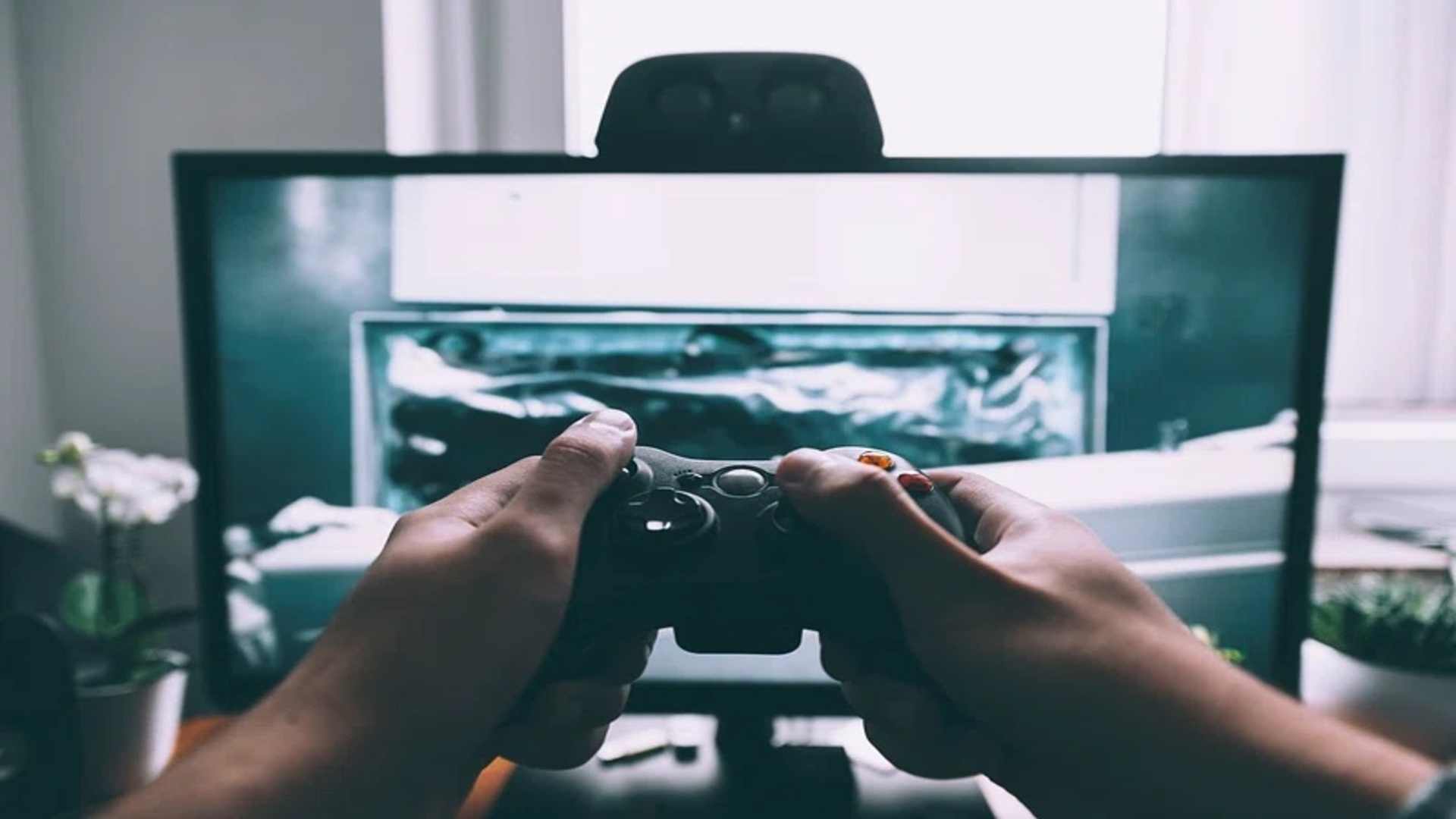
Experiencing input delay on an Xbox console can drastically compromise gameplay quality, particularly in fast-paced multiplayer titles. When there is a noticeable lag between pressing a button and seeing the action on screen, identifying the source of latency is essential. By applying targeted settings adjustments to your display, controller, and system setup, you can restore crisp responsiveness to your gaming sessions.
Enabling Game Mode on Your Television
Modern televisions process images heavily to improve picture quality, which often introduces significant input lag during interactive gameplay. Switching your TV settings to dedicated Game Mode bypasses non-essential post-processing features to dramatically speed up frame delivery.
If your television supports Auto Low Latency Mode (ALLM), ensure this feature is toggled on within your Xbox display settings. This feature allows the console to automatically command your display to switch into low-latency mode whenever a game is launched.
Optimizing Controller Connectivity
Wireless interference from nearby electronics can occasionally cause intermittent latency or missed button inputs on Xbox controllers. Connecting your controller directly to the console using a high-quality USB-C cable ensures a direct wired signal with minimal latency.
Additionally, keeping your controller firmware updated is crucial for maintaining optimal wireless performance and stability. You can easily check for pending controller updates by navigating to the Accessories app in your Xbox system settings menu.
Adjusting Console Audio and Video Outputs
Configuring your console to output unsupported video resolutions or uncompressed audio formats can inadvertently add processing overhead. Setting your video output to match your monitor's native refresh rate, such as 120Hz where supported, significantly cuts down response times.
Audio settings like Dolby Atmos or complex surround sound processing can also introduce minor sync delays during gameplay. Experimenting with stereo uncompressed audio settings often resolves subtle sync issues while keeping sound transmission instantaneous.
Managing Network Latency and System Power
Online multiplayer games often exhibit lag that feels like local input delay when network latency is high. Connecting your Xbox via a wired Ethernet cable rather than Wi-Fi reduces packet loss and stabilizes your overall connection speed.
Performing a full power cycle by holding down the console power button for ten seconds helps clear cached data. Clearing temporary files removes background bottlenecks that might hinder system performance over long gaming sessions.